

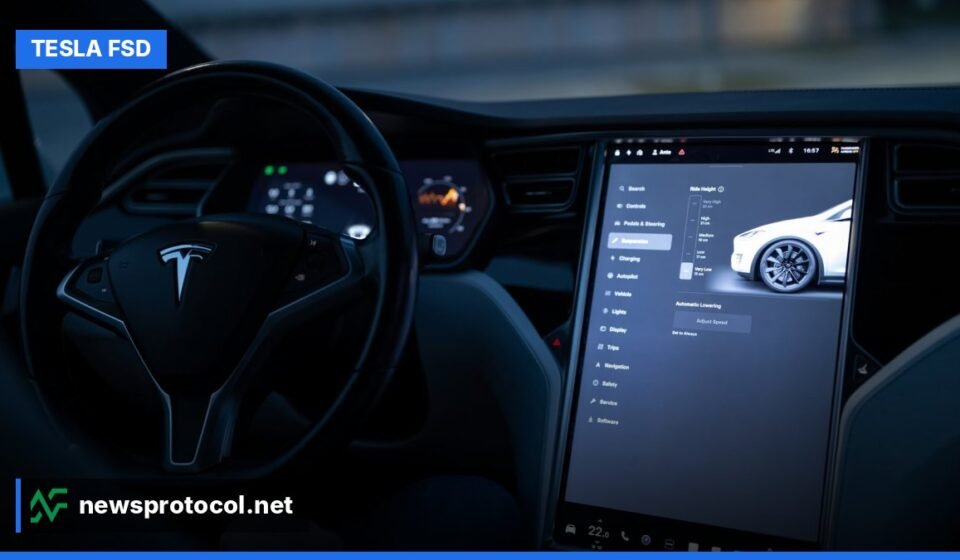

To use Tesla Self Drive, specifically Full Self-Driving (Supervised), you must first purchase or subscribe to the feature via the Tesla mobile app, then enable it on your vehicle’s touchscreen under Controls > Autopilot, and finally engage it while driving by pressing the right scroll wheel once (or pulling the drive stalk down once, depending on your vehicle model).
Key Facts
- Full Self-Driving (Supervised) costs $99 per month for a subscription or $8,000 for an outright purchase, according to AutomotiveGlory.
- FSD (Supervised) requires active driver supervision and does not make the vehicle autonomous, as stated by TeslaMagz.
- Vehicles need specific hardware, including 8 external cameras and a high-performance computing platform, for FSD functionality, according to Tesery Official Store.
- Tesla uses an interior cabin camera to monitor driver attentiveness, enforcing a 5-strike forced disengagement rule for unsafe usage, AutomotiveGlory reports.
- Drivers can choose from five driving styles: Sloth, Chill, Standard, Hurry, and Mad Max, to adjust FSD’s behavior, according to TeslaMagz.
Tesla’s Full Self-Driving (Supervised), or FSD, is a Level 2 driver-assistance system that allows your vehicle to navigate various road types under your active supervision. This guide details the steps to activate, engage, and safely manage FSD, ensuring you understand its capabilities and your responsibilities as a driver.
How to Purchase or Subscribe to Tesla FSD (Supervised)
Before using Full Self-Driving (Supervised), you must acquire the software license through the Tesla mobile app. This step links the FSD capability to your specific vehicle.
Open the Tesla Mobile App on your smartphone and select your vehicle from the main dashboard. Scroll down and tap “Upgrades,” then select “Software Add-ons” or “Subscriptions.” Choose “Full Self-Driving (Supervised)” and complete the purchase or monthly subscription process. According to AutomotiveGlory, the subscription costs $99 per month, or you can purchase it outright for $8,000. After purchase, your Tesla must connect to Wi-Fi to download the necessary software update containing the FSD firmware build. You can cancel subscriptions anytime through the app.
Enabling FSD (Supervised) on Your Tesla Touchscreen
Once the FSD software is downloaded, you need to enable the feature within your vehicle’s settings. This is a one-time setup process performed while the car is parked.
Sit in the driver’s seat and ensure your vehicle is in Park (P). Tap the “Controls” (Vehicle Icon) on the lower-left corner of the touchscreen. From the left sidebar menu, select the “Autopilot” tab. Locate the “Full Self-Driving (Supervised)” toggle switch and turn it ON. A safety disclosure pop-up window will appear; read the terms, confirm your commitment to keeping hands on the wheel and eyes on the road, and tap “Yes / Agree,” as detailed by AutomotiveGlory. This action activates the FSD system in your vehicle.
Engaging FSD While Driving on the Road
After enabling FSD in your vehicle’s settings, you can engage the system during a drive. The method for engagement varies slightly based on your Tesla model’s steering controls.
For newer Tesla models with stalkless steering wheels, such as the Model 3 Highland 2024+, Model S/X refresh, and Cybertruck, press the Right Scroll Wheel on the steering wheel once. A chime will sound, the steering wheel icon on the touchscreen will turn blue, and a blue path line will display on your screen visualization, according to AutomotiveGlory. For older Tesla models equipped with physical steering column stalks, pull the Right Drive Stalk down once (or twice, depending on your Autopilot controls setting). The chime will sound, and the blue steering wheel icon will illuminate on the screen.
Once engaged, FSD will begin controlling the vehicle, handling navigation, lane changes, and other driving tasks. You can learn more about specific Tesla models, including the Model 3 and Model Y, in a complete guide to every current Tesla vehicle
Understanding On-Screen Indicators and Driver Responsibility
Monitoring the touchscreen is important for safe FSD use, as it provides real-time information about the system’s status. The driver remains responsible for the vehicle at all times.
Tesla places strong emphasis on understanding the car’s on-screen indicators. A gray driving path means FSD is ready to be engaged but is not currently controlling the vehicle. A blue line with a “Self-Driving” label indicates that FSD is actively controlling the vehicle. Knowing this difference at a glance is a core part of using the system safely, according to TeslaMagz. While FSD can perform complex maneuvers, drivers must remain vigilant and attentive to the car’s speed and traffic decisions. Tesla’s FSD is a SAE Level 2 driver-assistance system, requiring active driver supervision at all times, as noted by AutomotiveGlory.
How to Disengage Tesla FSD and Take Manual Control
Disengaging FSD quickly and safely is essential for maintaining control in dynamic driving situations. There are several methods to immediately hand control back to the driver.
You can disengage FSD instantly using any of these three actions: pressing the brake pedal, which immediately returns full manual control; manually turning the steering wheel firmly, which overrides the automated steering; or pressing the Right Scroll Wheel once (for stalkless vehicles) or pushing the right drive stalk UP once (for stalk-equipped models), as explained by AutomotiveGlory. Any of these actions will immediately disengage the system, putting the driver back in full control.
Adjusting FSD Driving Style and Arrival Preferences
Tesla allows drivers to customize FSD’s behavior to match their personal preferences and needs, enhancing the driving experience.
FSD’s behavior can be tuned using five selectable modes: Sloth, Chill, Standard, Hurry, and Mad Max. “Sloth” and “Chill” are for more relaxed, cautious driving, while “Hurry” and “Mad Max” encourage more assertive driving. You can switch between these profiles while driving by using the right scroll wheel; scrolling up increases aggressiveness, and scrolling down decreases it, according to JOWUA. The tutorial also covers a feature that lets drivers indicate what the car should do upon reaching its destination. Using an on-screen dropdown, owners can select an arrival option, which may get additional related settings, TeslaMagz reports. However, drivers should be ready to take over if FSD cannot follow the selected preference due to real-world conditions.
Hardware and Software Requirements for Tesla Self-Driving
Tesla’s self-driving capabilities rely on specific hardware and up-to-date software to function correctly. These components are continuously evolving through updates.
Vehicles require multiple cameras, including 8 external cameras for 360-degree field of view coverage, along with 1 millimeter-wave radar and 12 ultrasonic sensors for environmental detection. High-performance computing chips, such as NVIDIA Drive PX 2 or self-developed FSD chips (e.g., HW 3.0, HW 4.0), provide AI arithmetic support. The system also features a dual redundancy design for safety, according to Tesery Official Store. Tesla transitioned all vehicles to camera-based Tesla Vision, no longer using radar or ultrasonic sensors for FSD navigation. HW4, also known as AI4, features 5 MP high-resolution cameras and a next-generation AI processing unit, fully supported with enhanced night vision and clarity on V12+ software builds, as stated by AutomotiveGlory.
Driver Monitoring and the FSD Strike System
To ensure safe usage, Tesla implements a driver monitoring system that tracks attentiveness while FSD is engaged.
Tesla uses the interior cabin camera, located above the rearview mirror, to monitor driver attentiveness. The camera tracks eye gaze and head orientation. If a driver looks away from the road or at a handheld smartphone for extended periods, the system issues visual and audible warnings, prompting the driver to apply gentle rotational force to the steering wheel. Ignoring multiple warnings during a drive triggers a “Forced Autopilot Disengagement” (a “Strike”), locking out FSD for the remainder of that drive. If an account accumulates five strikes (or three on vehicles without a cabin camera), FSD access is temporarily suspended for approximately one week. Strikes clear individually after seven days of attentive driving, according to AutomotiveGlory.
FAQ
How much does Full Self-Driving (Supervised) cost?
Full Self-Driving (Supervised) is available as a monthly subscription for $99 per month or as a one-time purchase for $8,000. Subscriptions can be started or canceled at any time via the Tesla app, according to AutomotiveGlory.
How do I turn on FSD on a Tesla Model 3 Highland (2024+)?
On 2024+ Model 3 Highland vehicles, which do not have steering stalks, press the Right Scroll Wheel on the steering wheel once to engage FSD. Pressing it again or touching the brake pedal disengages the system, as stated by AutomotiveGlory.
Does Tesla FSD require a Safety Score queue?
No, Tesla has eliminated the Safety Score queue requirement. Anyone who subscribes to or purchases FSD (Supervised) on a compatible HW3 or HW4 vehicle gets immediate access once the software update installs, according to AutomotiveGlory.
What is the difference between Autopilot, Enhanced Autopilot, and FSD (Supervised)?
Basic Autopilot includes Traffic-Aware Cruise Control and Autosteer. Enhanced Autopilot adds Auto Lane Change, Navigate on Autopilot, and Smart Summon. FSD (Supervised) includes all these features plus city street navigation, stopping at stop signs/traffic lights, and handling turn maneuvers, as detailed by AutomotiveGlory.
How do I remove an FSD strike on my Tesla?
FSD strikes clear automatically over time. Each strike expires seven days after it was issued, provided you maintain attentive driving without receiving additional forced disengagements, AutomotiveGlory reports.
Sources: TeslaMagz – Tesery Official Store – AutomotiveGlory – JOWUAUpdated: November 10, 2026.


[…] How to Use Tesla Self Drive: A Step-by-Step Guide for FSD (Supervised) […]